Navigate the App
The VENU app consists of the following screens:
- Search
- Your Events
- Resale
- Profile
Select the buttons at the bottom of the app to navigate between the Search, Your Events, and Resale screens. Select the profile icon at the top right of the app to access the Profile screen.
Search
Section titled “Search”The Search screen is the main screen of the app. At the top of the screen, a search bar lets you find events, artists, and venues by name. Below the search bar, your current location is displayed. Select the location to change it.
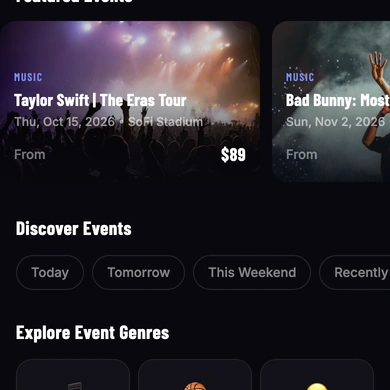
The Featured Events section displays a scrollable carousel of highlighted events in your area. The Discover Events section lets you filter events by when they happen — select Today, Tomorrow, This Weekend, or Recently Announced to narrow the list. The Explore Event Genres section lets you browse by category, including Music, Sports, Comedy, Theater, Arts, and Family. Below these sections, the All Events list displays all upcoming events in your area.
Your Events
Section titled “Your Events”The Your Events screen shows your tickets, organized into three tabs:
- Upcoming — events you have tickets for that have not yet happened
- Transferred — tickets you have sent to someone else
- Past — events that have already occurred
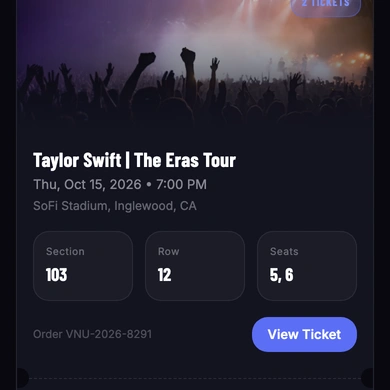
Each ticket card displays the event name, date, time, venue, and your seat details — including section, row, and seat numbers. Select View Ticket to open the ticket barcode, which you present at the venue entrance. If your tickets are not displaying, select Refresh.
Resale
Section titled “Resale”The Resale screen lets you sell tickets you can no longer use. The screen is organized into three tabs:
- Active Listings — tickets you currently have listed for sale
- Sold — tickets you have already sold
- Balance — your earnings from ticket sales
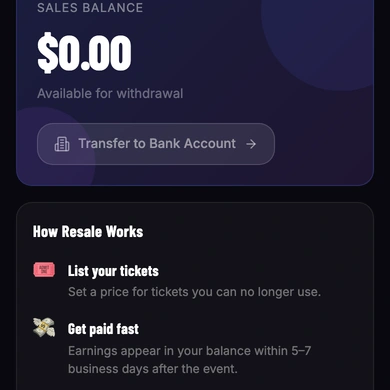
The Balance tab displays your available earnings and a Transfer to Bank Account button. The How Resale Works section explains the resale process: list your tickets, receive payment within 5–7 business days after the event, and withdraw your balance at any time.
Profile
Section titled “Profile”Select the profile icon at the top right of the app to open the Profile screen.
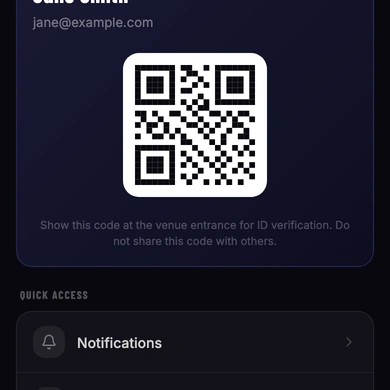
At the top of the screen, your VENU Mobile ID is displayed as a QR code. Show this code at the venue entrance for identity verification — do not share it with others.
The Quick Access section links to your Notifications and Order History. The Settings section lets you manage your location services, home location, account details, app appearance, cookie preferences, and notification settings. The Help & More section links to VENU Support, FAQs, Privacy Policy, and Terms of Use. Select Log Out at the bottom to sign out of the app.